
Pick and set up the right microphone
How to select an audio input, position the microphone, and read LIVE INPUT. The meter shows audio level, not translation quality.
This guide is currently only available in English.
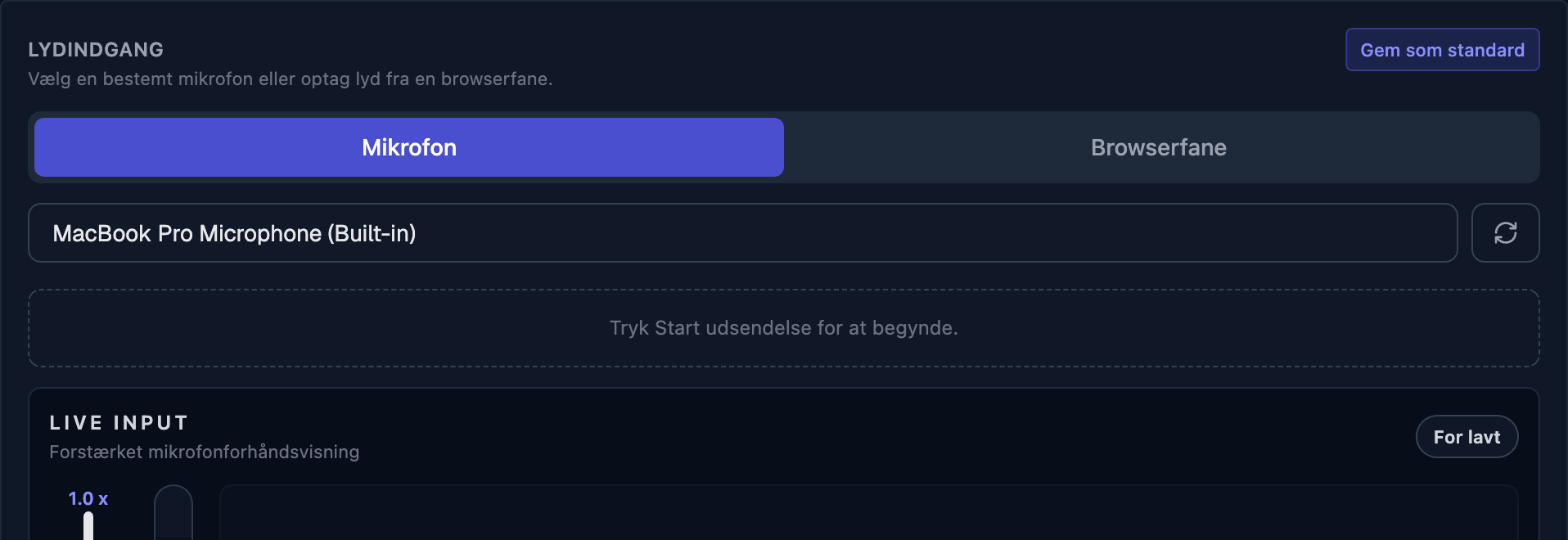
Under Audio input you either pick a specific microphone or capture audio from a browser tab. Check that the selected input captures the intended speaker. A headset or stage microphone can help keep the microphone close to the speaker.
Checklist before you start
Pick the right device
Choose the microphone in the dropdown. Have the speaker talk and check that the selected input responds.
Place it close to the mouth
The closer to the speaker, the cleaner the signal. Keep the microphone away from loudspeakers and instruments.
Read the LIVE INPUT meter
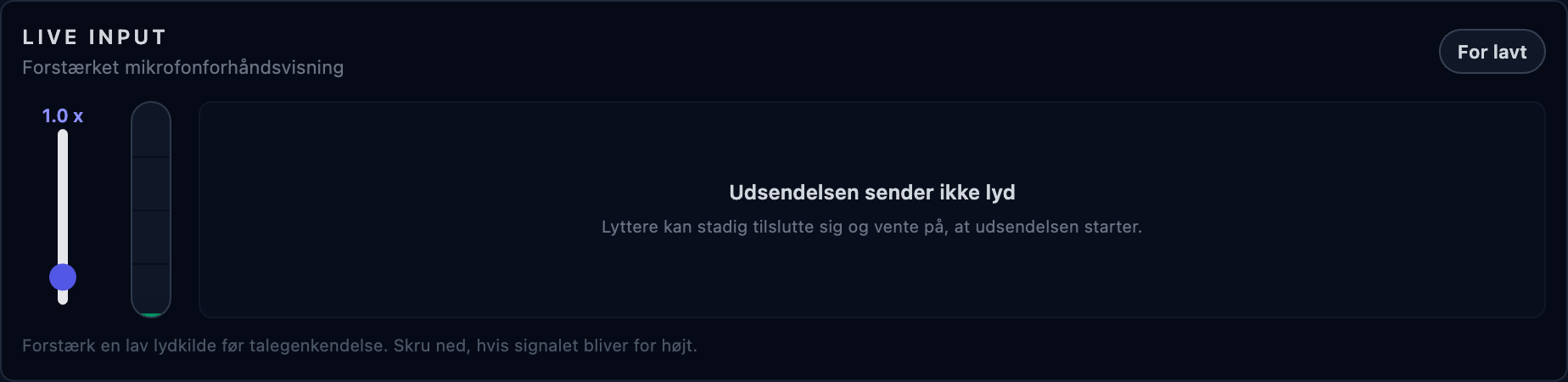
Speak at a normal volume and check that the meter responds. For a low level, first check the selected audio input. Then adjust placement or level a little at a time and listen again. The meter does not assess the translation.
Set the level in 30 seconds
Speak at real volume
Have the speaker talk the way they do in the service — not the cautious testing voice.
Check input and level
First check that the selected audio input captures the speaker. If needed, adjust placement, mixer output or sound-card level a little at a time during normal speech. The meter shows audio level, not translation quality.
Never red
If you hear distortion or see red during loud passages, lower the level at the source and listen again.
Windows: compare sound settings
If Windows audio enhancements change the sound, compare the selected device with the feature on and off. Listen to the same speech sample before choosing the setting.
Microphone blocked in the browser?
Click the camera/microphone icon in the address bar, choose Allow, then press Retry on the banner. Without the permission the broadcast can't hear anything.
Microphone disconnected or went silent?
Bluetooth and USB microphones can drop mid-service — the broadcast pauses itself. Reconnect the device, or pick another microphone in the dropdown, and start the broadcast again.
Less noise: turn off fans and air-conditioning near the microphone where possible, keep distance from loudspeakers, and prefer directional mics or headsets in reverberant rooms.
The audio is still poor or the microphone keeps acting up
마지막 업데이트 2026년 10월 8일
Helps when OCvoice detects