
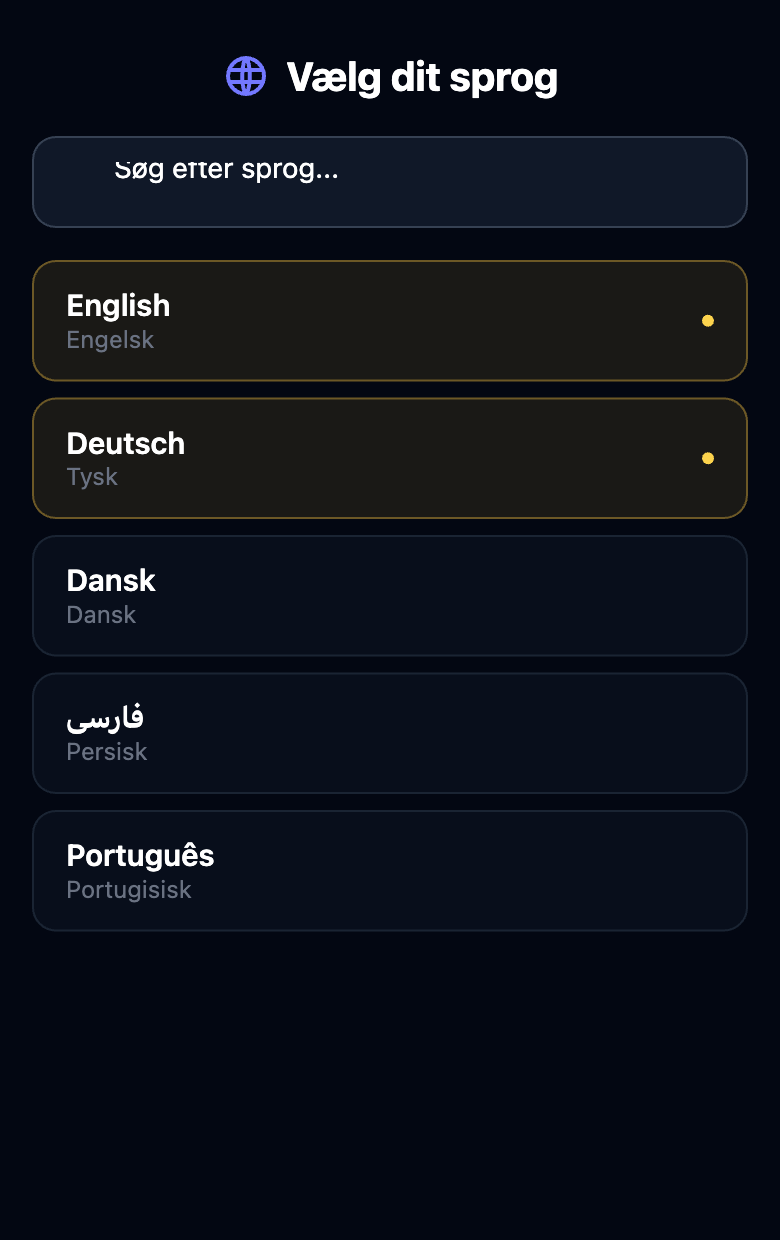
Scan the QR code. Choose your language. Listen and read on your phone — or through the church’s existing receivers.

Hear the difference.
Open the full demoFrom your audio to their language.
- 1
Connect your audio.
Open OCvoice on the church’s computer and select audio from the mixer or a microphone.
- 2
Choose languages and share the QR code.
Set up the church’s languages and names. Your permanent link and QR code make the service easy to find.
- 3
Start. Everyone can listen.
Listeners choose their language on their phone. Your technician can also route translated audio to existing receivers.
What you actually need to do.
Your sound operator gets one broadcast page in the browser. Select an input, check the audio, and start. We’re happy to help with the first setup.
See the setup step by step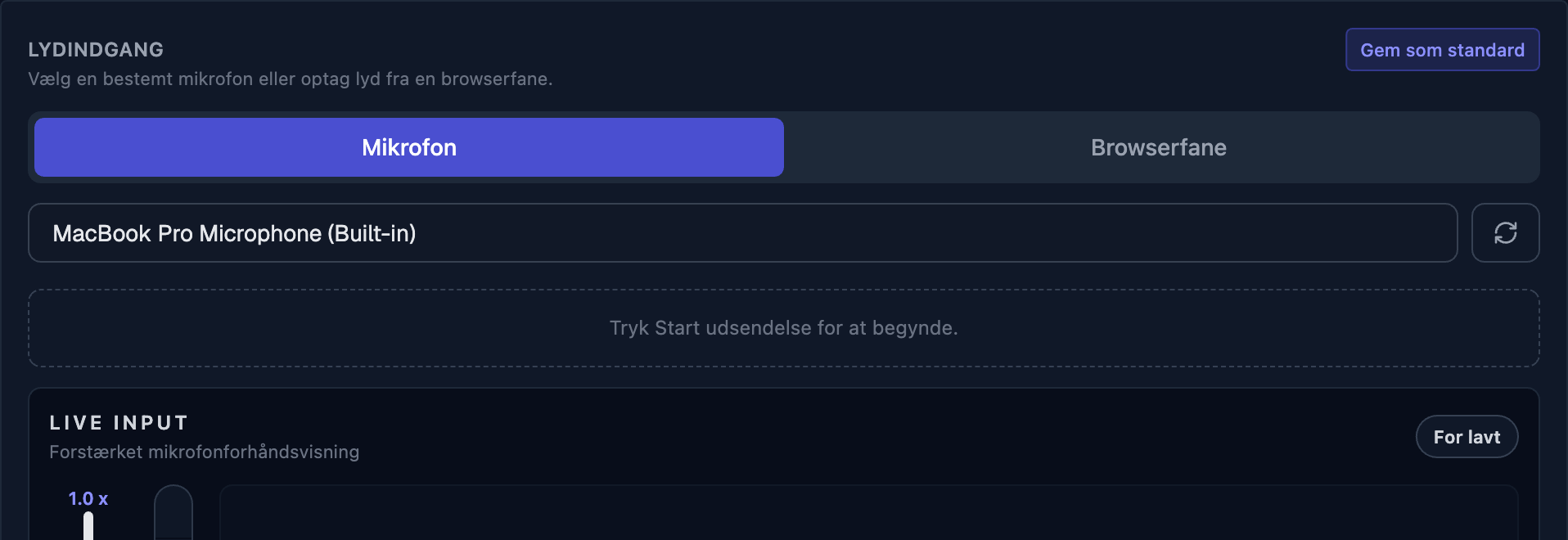
In Herning, the audio goes further.
Here, OCvoice has been used to translate the service into Ukrainian and Farsi. The translated audio was routed into the mixer, through the transmitter, and out to receivers the church already had.
Feedback from this use was positive. The experience is simple: new languages don’t have to mean replacing all your equipment.
From actual use in Herning, reported by Daniel.Translated audio
Mixer
Transmitter
Your receivers
Plan the cost of your next service.
Pay for actual active translation time, including audio feeds you activate. Speech recognition, subtitles and audio are included. Selecting languages alone costs nothing.
The service can reach further.
Translated audio on YouTube
Translated YouTube broadcasts are being tested. The aim is to let more people follow the service in their own language, including from home.
From sermon to conversation
Human interpreters alongside AI in the same service, reels and small-group material are ideas for what comes next. These are not finished features. Tell us what would help you.
Already have a church code?
Or scan the QR code at your church